
TL;DR – Choose what you want to do
- Start fresh and delete all Git commit history (keep one clean commit)
- Remove a specific commit from Git history
- Delete commit history from a single branch
- Understand what changes on GitHub and GitLab
While developing software, commit history holds all the information about changes made to a project over time. There are situations where you may need to erase commit history to make a repository cleaner, safer, or ready for public sharing. In this blog, we explain how to delete Git commit history safely and correctly.
At Xebia, we promote publishing software projects as a way to give back to the community, promote innovation, and demonstrate technical authority. When publishing repositories publicly, it is important to carefully review and, if necessary, clean up the commit history.
The commit history is a chronological record of all changes made to a project. This includes code updates, refactors, fixes, and experiments. Over time, a repository may accumulate commits that are no longer relevant or that expose internal details, secrets, or abandoned ideas. In such cases, deleting or rewriting commit history may be appropriate.
In this guide, we walk through multiple ways to delete Git commit history, including how to start fresh with a clean repository, how to remove specific commits, how to rewrite history for a single branch, and what this means when working with GitHub or GitLab.
Method 1: Delete All Git Commit History and Start Fresh
Short answer: You can delete all Git commit history by creating an orphan branch, committing the current state, and force pushing it to replace the existing history.
Use this method when: You want to permanently remove all previous commits and start the repository with a single clean commit.
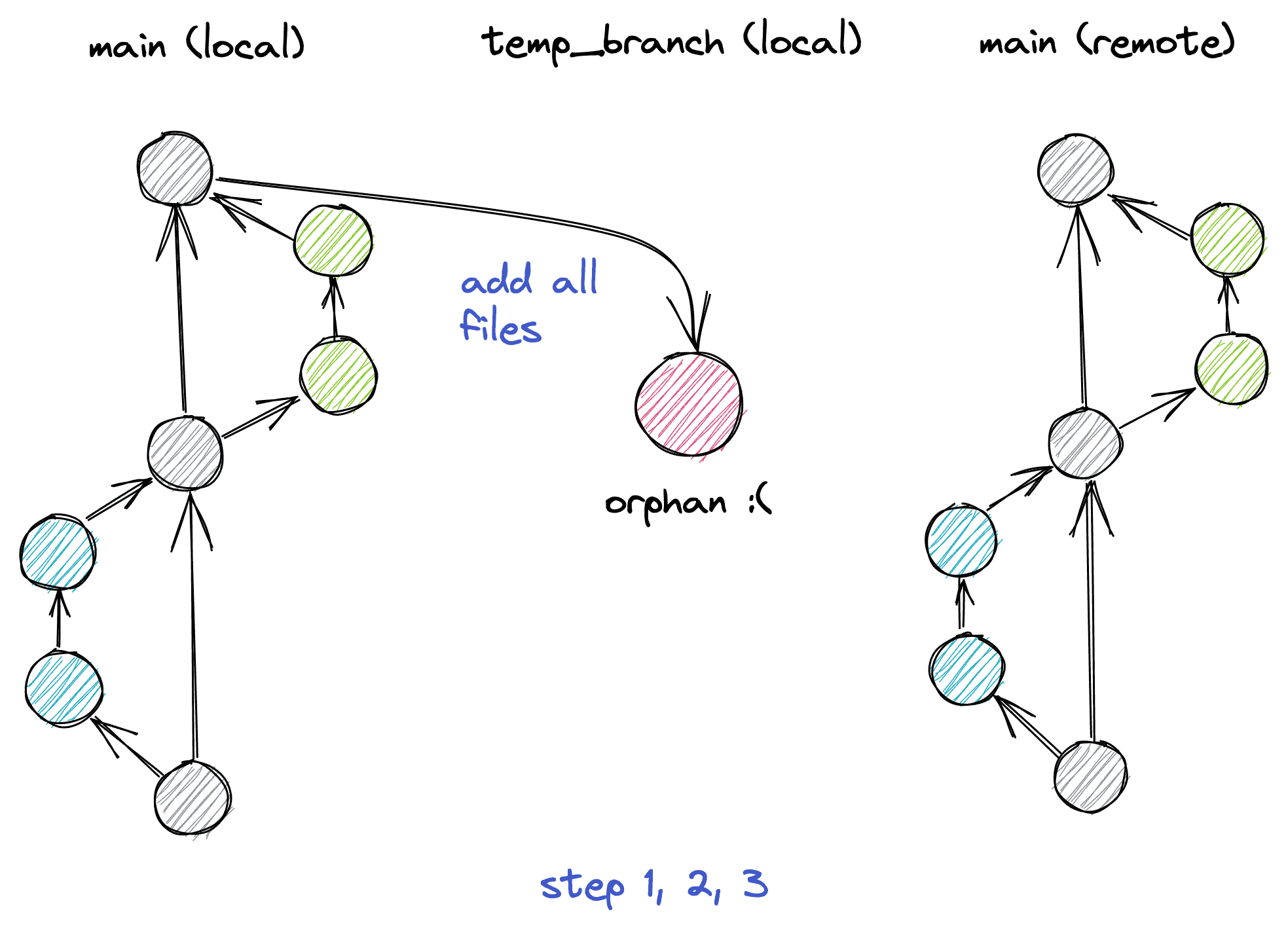
Step 1: Check out to a temporary branch
Ensure that your default branch (main or master) is in the desired state. This state will become the starting point of your new commit history.
git checkout --orphan temp_branch
This command creates a new branch named temp_branch without any commit history. The --orphan flag ensures that no previous commits are carried over.
Step 2: Add all files
git add -A
This stages all files in the working directory, including deletions.
Step 3: Commit the changes
Create a single clean commit:
git commit -m "Initial commit"
The result is a repository with a single commit containing the entire project.
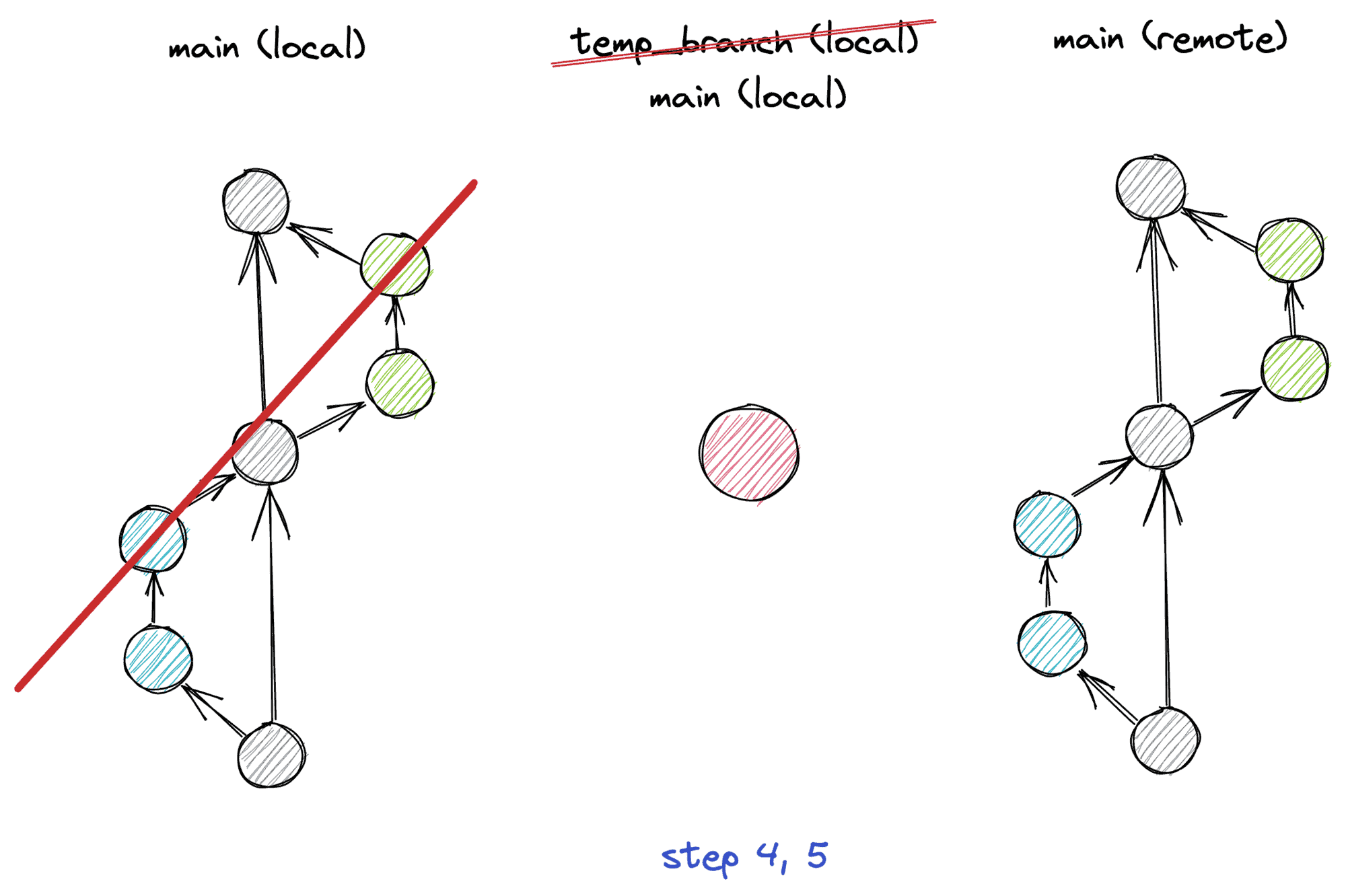
Step 4: Delete the old default branch
Delete the local default branch that still contains the full commit history:
git branch -D main
Step 5: Rename the temporary branch
Rename the temporary branch to become the new default branch:
git branch -m main
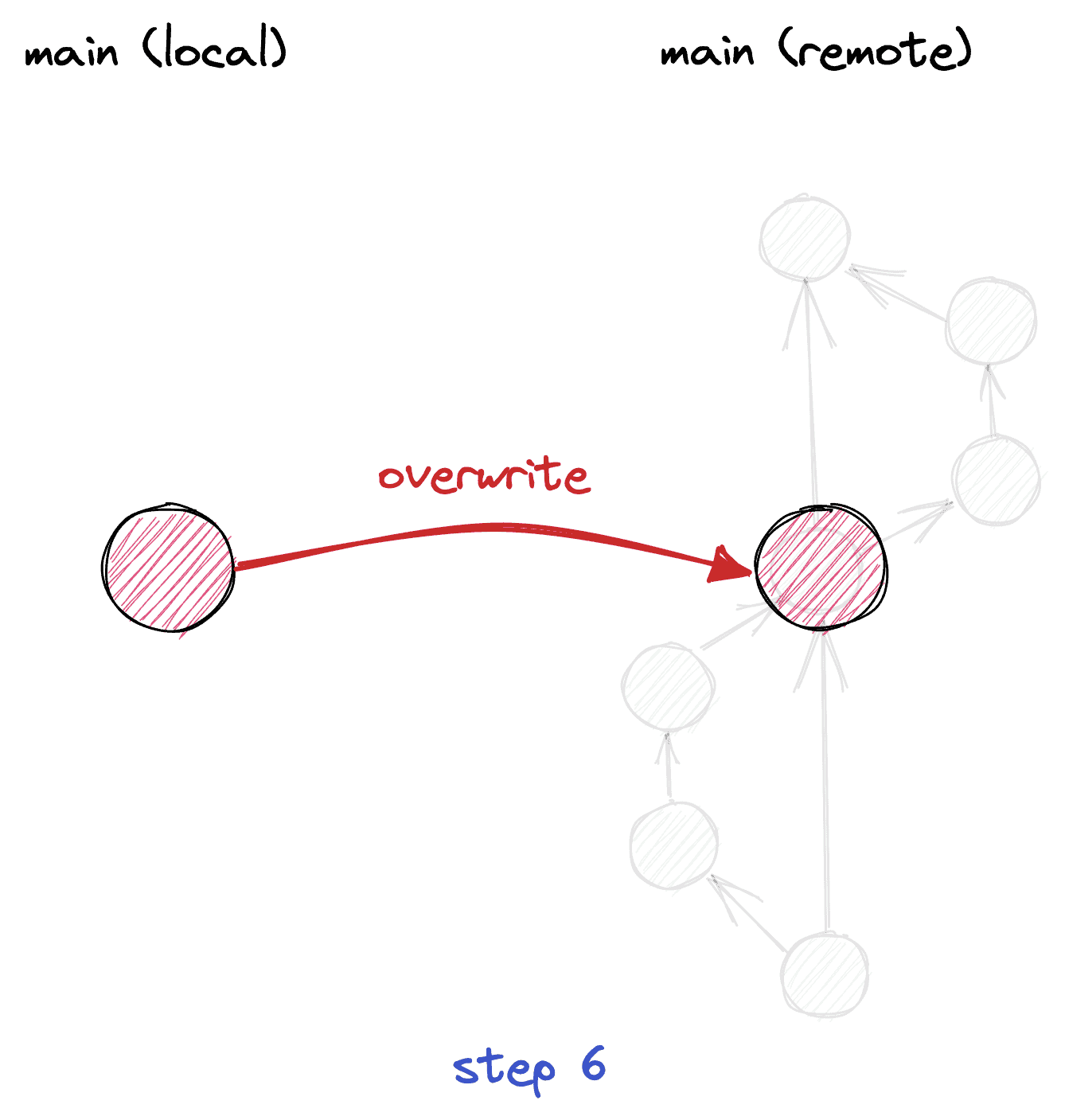
Step 6: Force update the remote repository
Overwrite the remote history with your new clean commit:
git push --force origin main
The --force option replaces the entire commit history on the remote repository. This action should be used with caution, as all previous commits will be permanently removed.
Method 2: Remove a Specific Commit From Git History
Short answer: You can remove a specific Git commit using interactive rebase or reset, followed by a force push if the commit was already pushed.
Use this method when: You need to delete one or a few commits without removing the entire repository history.
If you do not want to delete the entire commit history, you can remove a specific commit instead. This is useful when a single commit contains sensitive data, large files, or incorrect changes.
Remove the most recent commit
If the commit is the most recent one and has not been pushed:
git reset --hard HEAD~1
If it has already been pushed, force push the update:
git push --force origin main
Remove an older or specific commit
Use interactive rebase to edit history:
git rebase -i HEAD~N
Replace N with the number of commits to review. In the editor, change pick to drop for the commit you want to remove, then save and exit.
Important: Removing specific commits rewrites history and requires collaborators to rebase or re-clone their repositories.
Method 3: Delete Commit History From a Single Branch
Short answer: You can delete commit history from a single branch by creating an orphan branch from its current state and force pushing it.
Use this method when: You want to clean one branch without affecting other branches in the repository.
If you want to clean the history of one branch only, this approach allows you to keep other branches intact.
git checkout feature-branch
git checkout --orphan temp_branch
git add -A
git commit -m "Clean commit"
git branch -D feature-branch
git branch -m feature-branch
git push --force origin feature-branch
Only the selected branch history is rewritten. Other branches remain unaffected.
| Scenario | Recommended Method |
|---|---|
| Delete all commit history | Orphan branch + force push |
| Remove one commit | Interactive rebase |
| Clean one branch | Orphan branch on target branch |
GitHub vs GitLab: What Changes When You Delete Git History
Platforms like GitHub and GitLab do not provide a web interface option to delete commit history. All history rewriting must be done locally using Git commands.
- Commit history cannot be deleted from the web UI
- A force push is required to overwrite remote history
- The same commands apply to GitHub and GitLab
- Collaborators must resync after history changes
Conclusion
Deleting Git commit history is a powerful but irreversible action. Whether you are preparing a repository for open source, removing sensitive data, or cleaning up development artifacts, it is critical to understand the impact on your team and contributors.
Used carefully, the methods outlined above allow you to delete Git commit history safely, efficiently, and with full control over the outcome.
Sources

Our Ideas
Explore More Blogs


Contact